
Use the queue and playlists
The queue decides what plays next. Playlists collect episodes you want to keep together. Both show up in the podcast grid. To add podcasts and play episodes, see Add and play podcasts.
Manage the queue
Section titled “Manage the queue”The Queue list under the player shows what plays next. With the automatic queue on, the default, the top episode in the queue starts when an episode ends, and the episode you switch away from goes to the top of the queue. To fill it only by hand, turn off the automatic queue.
To add an episode to the bottom of the queue:
- Right-click the episode, or select its three-dot More options button.
- Select Add to Queue.
Reorder the queue
Section titled “Reorder the queue”- In the player’s Queue list, right-click an episode, or select its More options button.
- Select Move to top of queue, Move up in queue, Move down in queue, or Move to bottom of queue.
For a long queue, run PodNotes: Reorder Queue. It opens a list where you move each episode up, down, to the top, or to the bottom, and it needs two or more episodes in the queue.
Turn off the automatic queue
Section titled “Turn off the automatic queue”To control the queue only by hand:
- In Settings → PodNotes, turn off Keep a queue of episodes you switch away from.
PodNotes then stops adding the episode you leave, and when an episode ends, the next one in the queue does not start. With the setting off, the podcast grid hides Queue while the queue is empty.
Collect episodes in playlists
Section titled “Collect episodes in playlists”The podcast grid also shows three built-in playlists:
- Favorites holds the episodes you add with Add to Favorites.
- Local Files holds your downloads and your own media files. See Downloads and local files.
- Played lists the episodes you finished or marked as played, including ones that have left their feed.
To make your own playlist:
- Open Settings → PodNotes.
- Under Playlists, select an icon in the icon dropdown.
- In Playlist name, type a name, such as
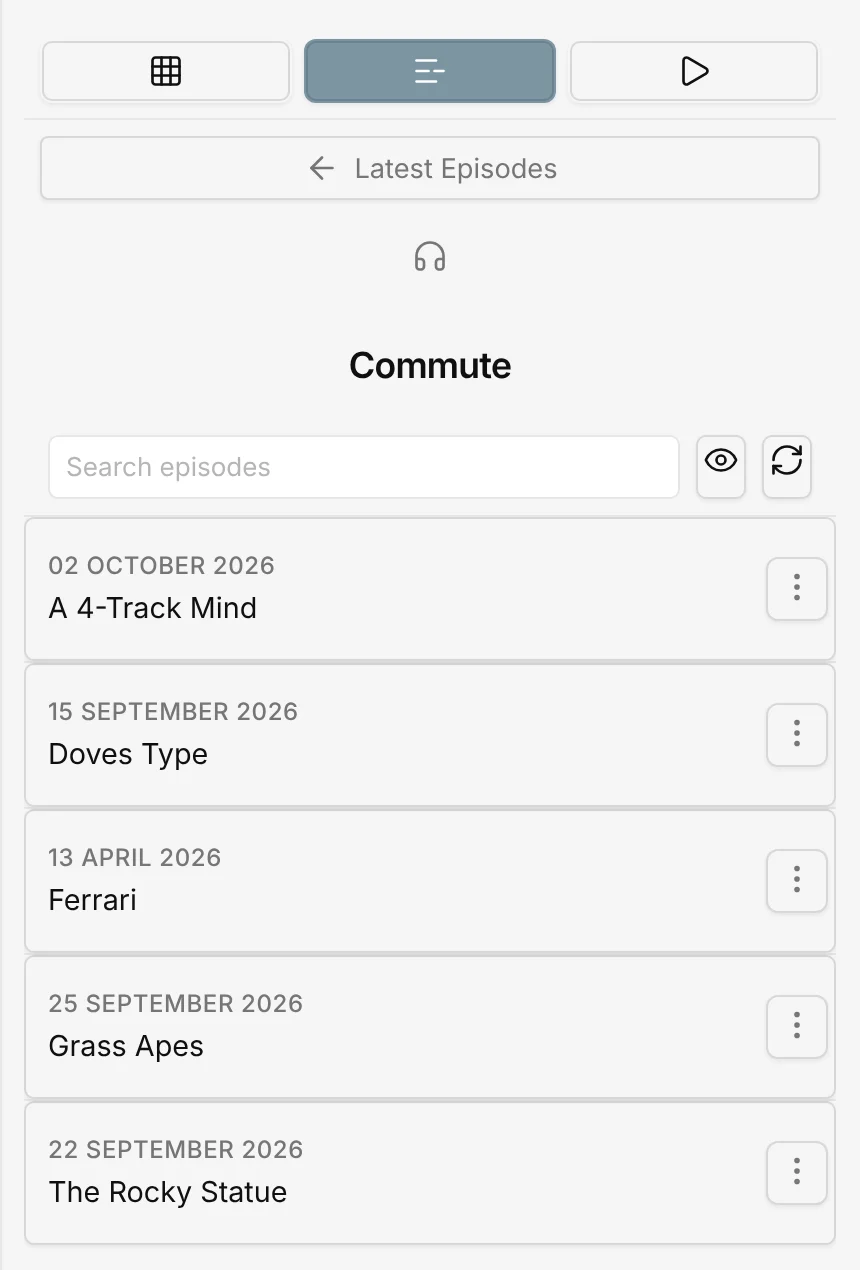
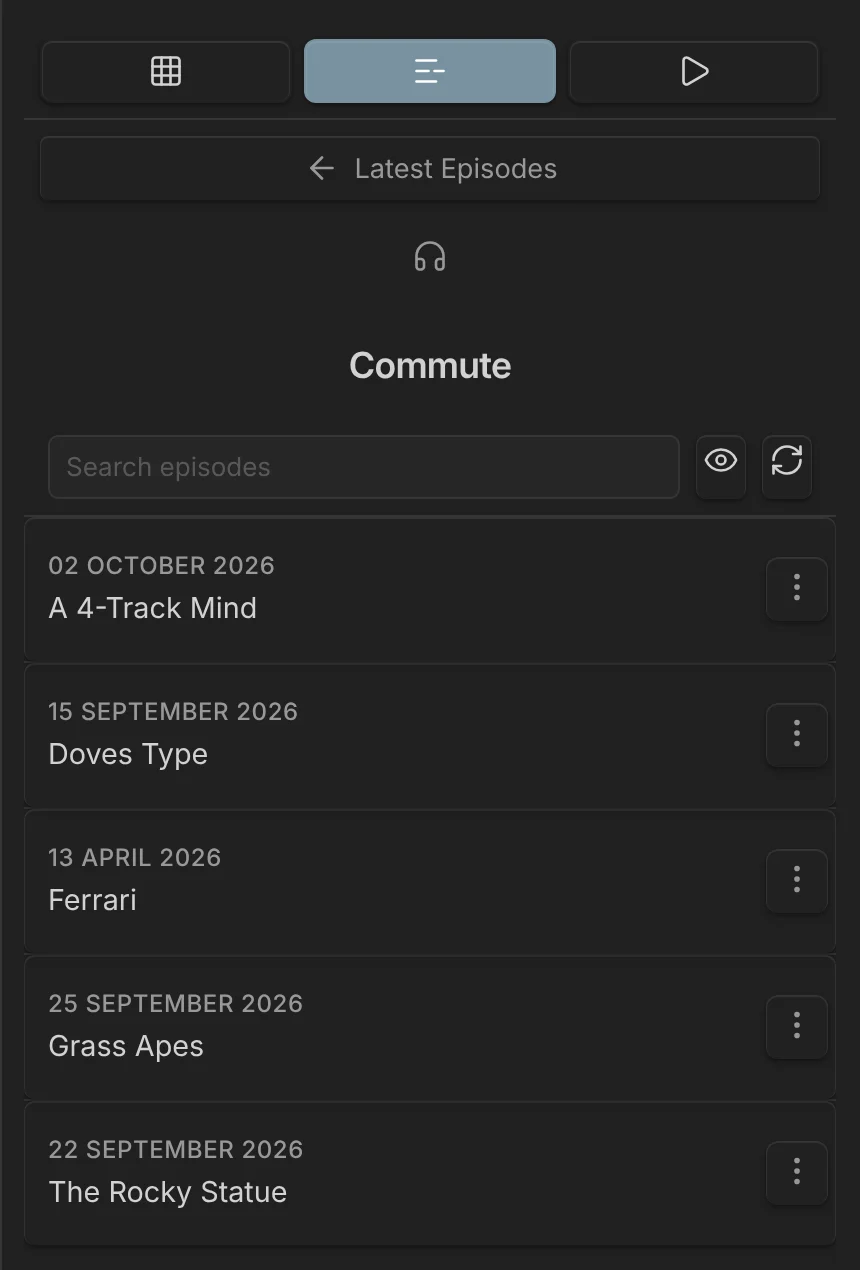
Commute. - Select Add.
The playlist appears in the podcast grid. To add an episode to it:
- Right-click the episode, or select its More options button.
- Select Add to Commute.
Select the playlist in the podcast grid to see its episodes:
Remove an episode from a list
Section titled “Remove an episode from a list”- In the player’s Queue list, in Favorites, or in a playlist, right-click the episode, or select its More options button.
- Select Remove from Queue, Remove from Favorites, or Remove from followed by the playlist’s name.
In the PodNotes: Reorder Queue list, Remove from queue next to an episode does the same.
Delete a playlist
Section titled “Delete a playlist”- Open Settings → PodNotes.
- Under Playlists, select the playlist’s Delete playlist button, the trash icon.
- Within two seconds, select Confirm deletion, the check icon.
The episodes stay in their podcasts and in your other lists.