
Add and play podcasts
Add podcasts to PodNotes, find their episodes, and play them.
Add a podcast
Section titled “Add a podcast”- Open Settings → PodNotes.
- Under Search Podcasts, type a podcast’s name, such as
the daily. Results appear as you type. - Next to the podcast, select Add.
Search uses the Apple Podcasts directory. To add a show by its address instead:
- Copy its RSS feed URL or its Apple Podcasts show link. An RSS feed URL looks like
https://.feeds.npr.org/ 510289/ podcast.xml - Paste it into Search Podcasts.
- Select Add on the one result that appears.
See Which podcasts can I add? and Can I use a private feed?
Remove a podcast
Section titled “Remove a podcast”- Open Settings → PodNotes.
- Under Search Podcasts, clear the search box. It lists the podcasts you follow.
- Next to the podcast, select Remove.
PodNotes keeps the podcast’s episode notes, downloads, and playlist entries.
Browse episodes
Section titled “Browse episodes”- Run PodNotes: Show player, or select Show PodNotes in the ribbon.
- At the top of the PodNotes view, select Podcast grid, the first of the three buttons.
- Select a podcast’s artwork, or select a playlist.
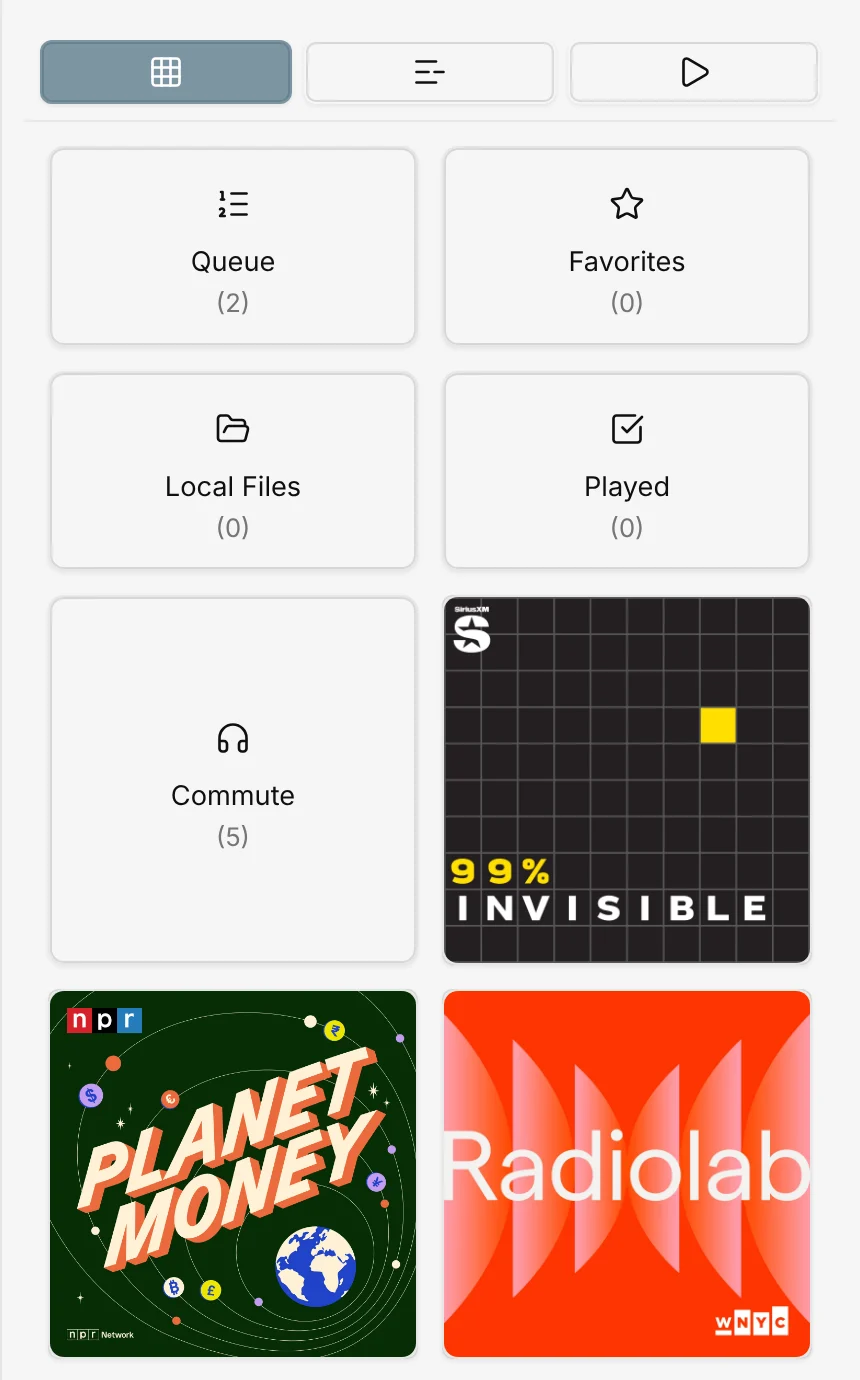
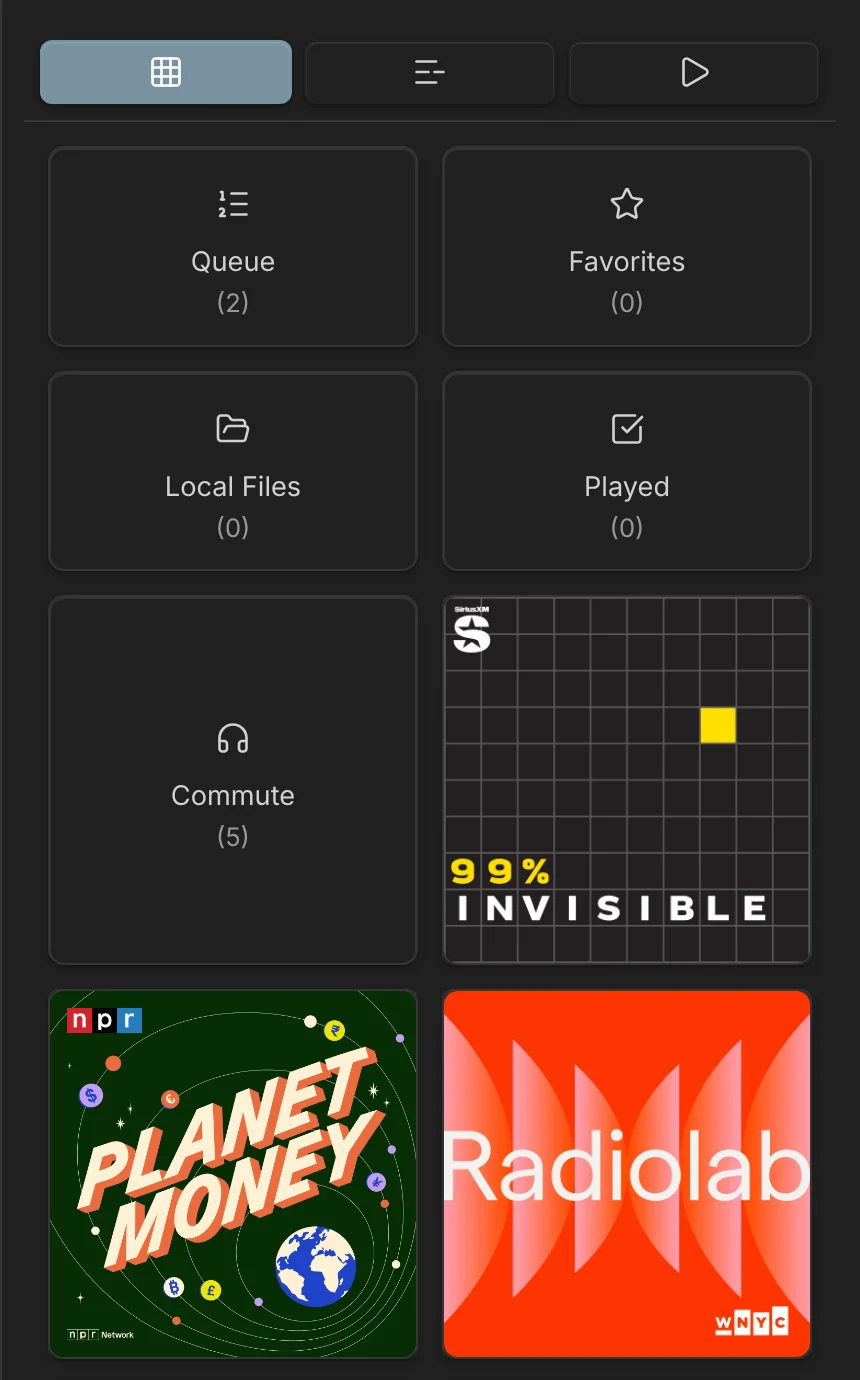
The view then lists that podcast’s or playlist’s episodes. Queue is the exception: when it holds episodes, it opens the player, which shows the Queue list.
To return to the last list you saw, select Episode list, the second button at the top of the view. If it shows a podcast or a playlist, select Latest Episodes at the top to see the newest episodes of every podcast.
Above each list:
- Search episodes filters the list.
- Refresh episodes fetches new episodes in Latest Episodes and a podcast’s list. In Played, it fetches the podcasts that have played episodes. In other playlists, it does nothing.
- Hide played episodes hides the episodes that PodNotes strikes through as played, and Show played episodes brings them back. The Played list always shows them.
The Queue list under the player has none of these controls.
Latest Episodes shows and searches the 10 newest episodes of each podcast. To show up to 75, raise Latest episodes per podcast in Settings → PodNotes.
When a feed cannot be reached
Section titled “When a feed cannot be reached”When PodNotes tries to fetch a podcast’s feed as you open the podcast or refresh its list, and the fetch fails, for example offline, PodNotes uses the first of these that has episodes:
- The podcast’s downloaded episodes.
- The episodes PodNotes loaded for the podcast since Obsidian started.
- The cached copy of the feed, if Cache podcast feeds is on and the copy is younger than Cache duration (hours).
If none of them has episodes, the list is empty, and a notice asks you to check your connection and try again.
Play an episode
Section titled “Play an episode”- In an episode list, select an episode.
The player opens and resumes where you stopped last time. To return to the player from a list, select Player, the third button at the top of the view.
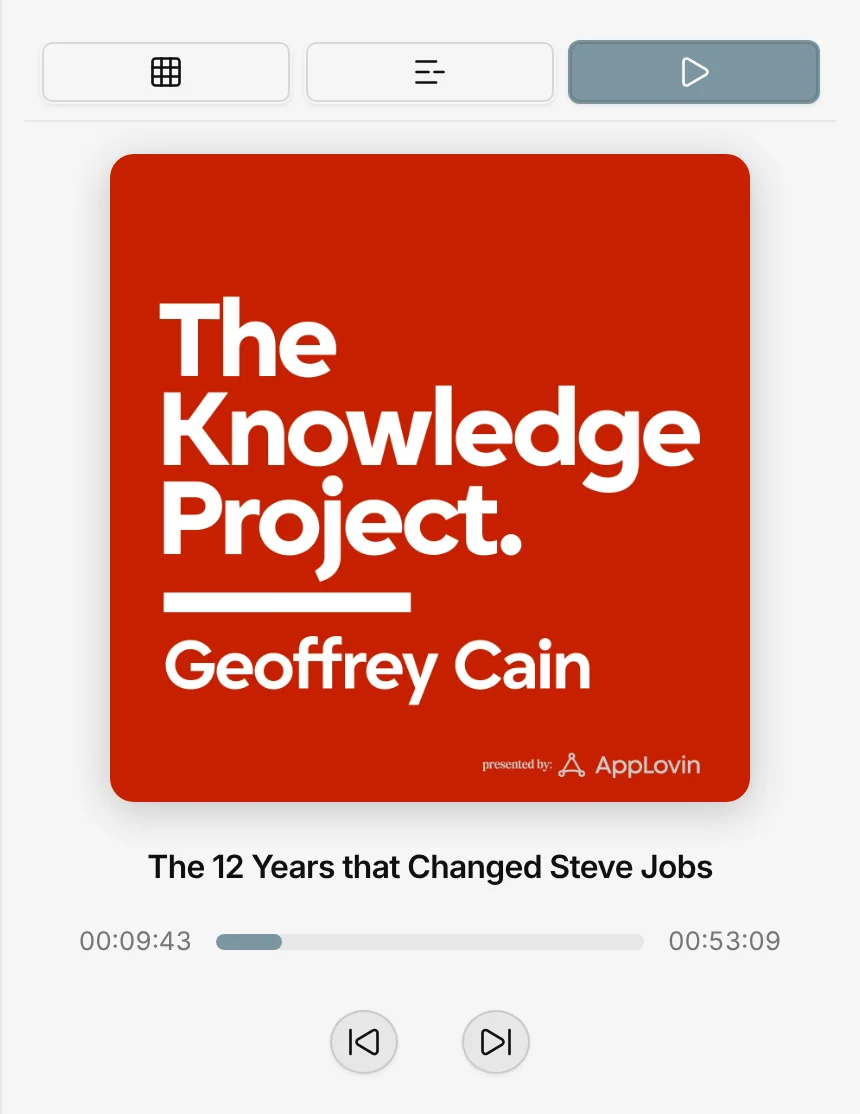
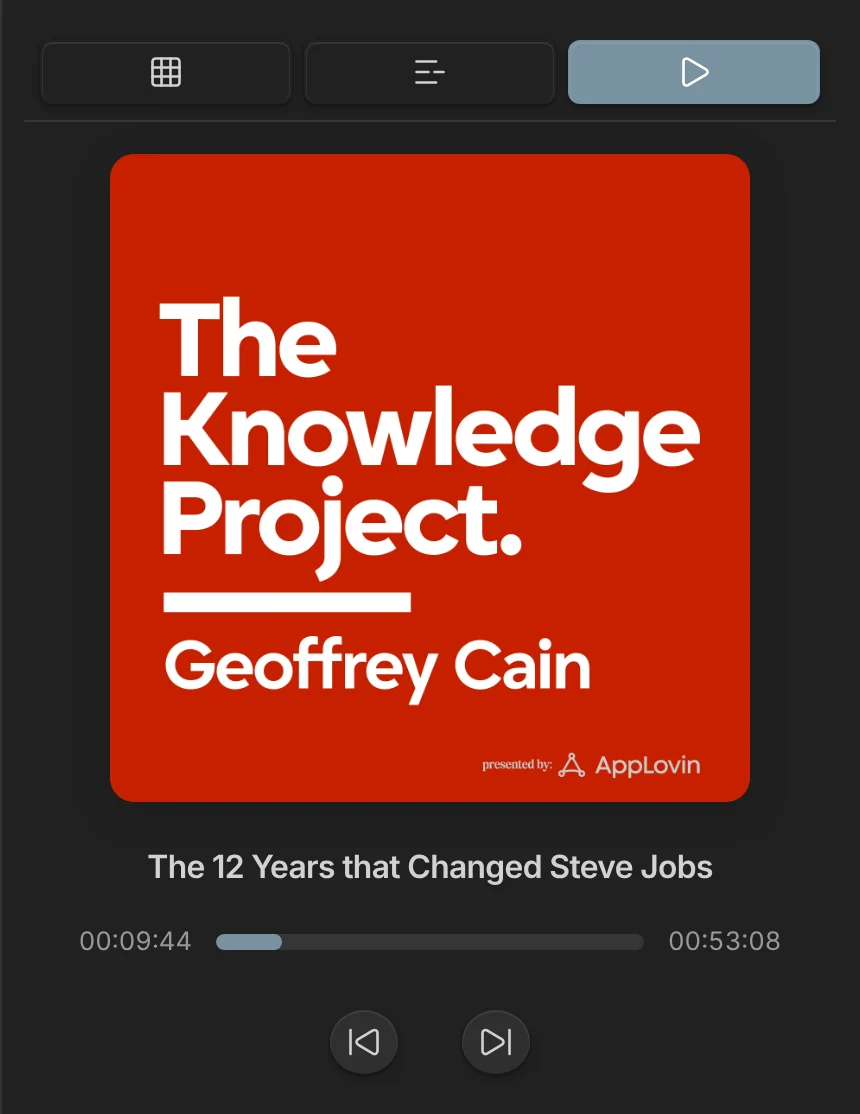
- Select the artwork to play or pause. Select a point on the progress bar to jump there. The time on the left is how far you are, and the time on the right is how much is left.
- The skip buttons jump 15 seconds. Skip backward length (s) and Skip forward length (s) change that.
- The speed slider, below the volume slider, goes from 0.5x to 4x. Each time Obsidian starts, the speed resets to Default Playback Rate.
- Chapters lists the episode’s chapters when it has them. Select a chapter to jump to it.
Queue and playlists
Section titled “Queue and playlists”The queue decides what plays next, and playlists collect episodes you want to keep together. Use the queue and playlists shows how to add and remove episodes, reorder the queue, and make your own playlists.
Episode menu reference
Section titled “Episode menu reference”To open an episode’s menu, right-click the episode or select its More options button. The menu shows these items in this order:
| Item | What it does |
|---|---|
| Play | Plays the episode. |
| Mark as Played or Mark as Unplayed | Changes whether the episode counts as played. |
| Download, Remove file, or Remove from Local Files | Downloads the episode. Remove file deletes a download to the trash, and Remove from Local Files removes your own file from the list and keeps the file. See Downloads and local files. |
| Create Note or Open Note | Creates or opens the episode note. See Create episode notes. |
| Create feed note or Open feed note | Creates or opens the note for the whole podcast. |
| Add to Favorites or Remove from Favorites | Adds the episode to Favorites or removes it. |
| Add to Queue or Remove from Queue | Adds the episode to the bottom of the queue or removes it. |
| Move to top of queue, Move up in queue, Move down in queue, Move to bottom of queue | Moves the episode within the queue. Shown only in the player’s Queue list when the queue has two or more episodes, and only the directions the episode can move in. |
| Add to playlist or Remove from playlist | Adds the episode to that playlist or removes it. One item per playlist you made. |